

Bright Data Connector

Bright Data provides award-winning proxy networks, AI-powered web scrapers, and business-ready datasets for download. Welcome to the internet’s most trusted web data platform.
Prerequisites
An active Bright Data subscription is required.
Please contact support to:
- Whitelist the domain of your fingerprint service (
FINGERPRINT_URL) ; - Adjust the rate limit for your fingerprint service if you plan to use more than 10 proxies simultaneously.
The rate limit is calculated as follows:
Ratelimit = Number of simultaneaous proxies x 2800 requests per day
For example, 100 proxies requires 280,000 requests per day.
Additionally, set the Proxies Timeout to 30 seconds (see Connector configuration below).
Bright Data Dashboard
Connect to Dashboard.
Create a token
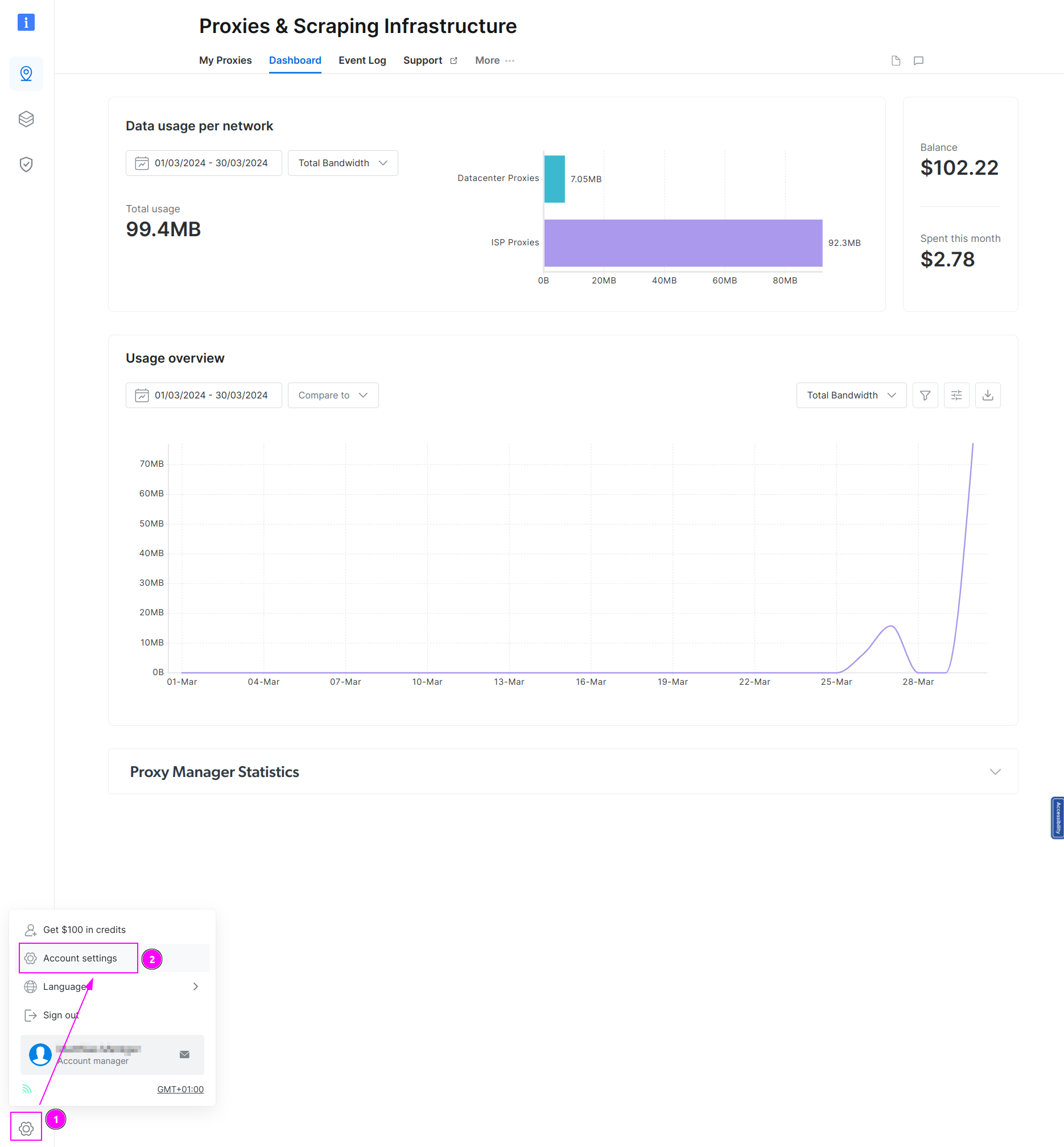
- On the left menu, select the wheel at the bottom;
- Click on
Account settings.
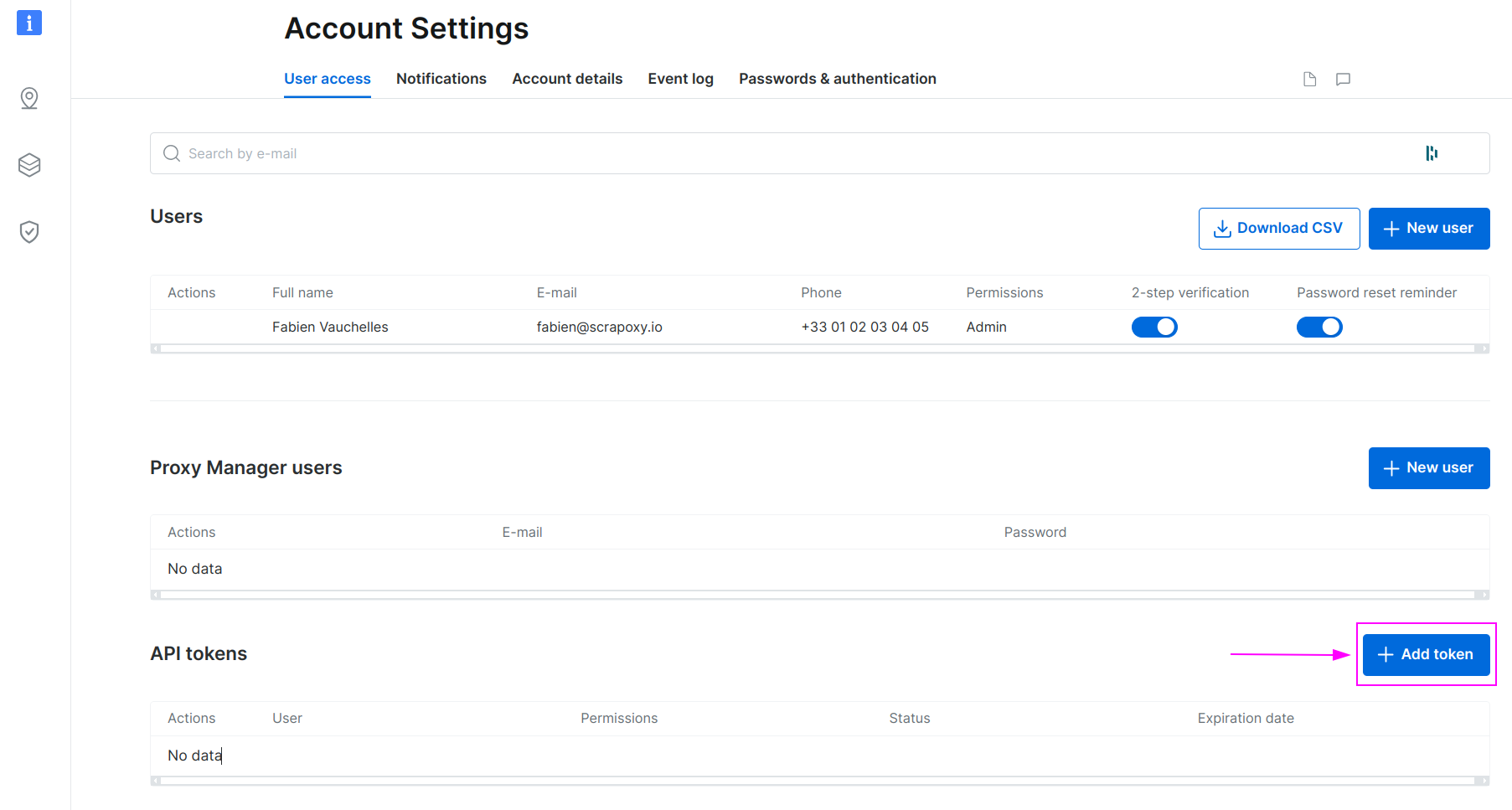
Click on Add token.
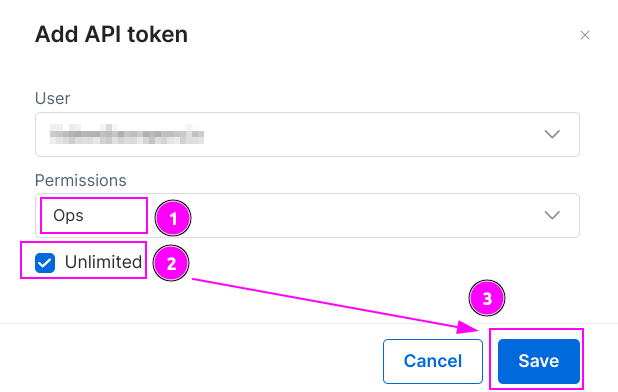
- Select the
Opspermissions; - Click on
Unlimitedor specify a date for a limited token if wanted; - Click on
Save.
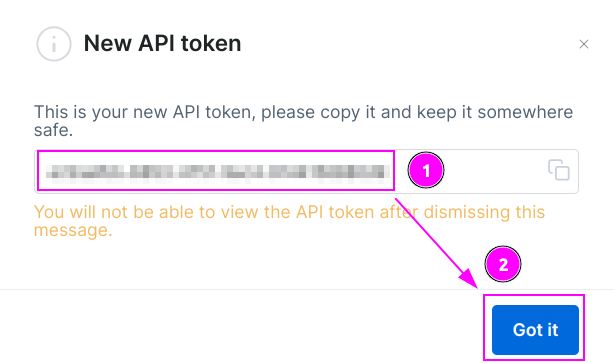
- Remember the token;
- and click on
Got it.
Add a zone

- On the left menu, click on the zone icon;
- Click on
Add.
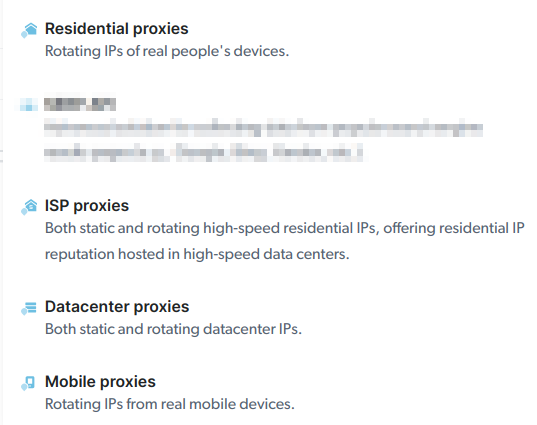
Choose between Residential, ISP, Datacenter or Mobiles proxies.
For ISP or Datacenter proxies, select the number of required instances.
WARNING
Do not add a Geolocation targeting filter, as ProxyHerd will manage this parameter.
ProxyHerd
Open ProxyHerd User Interface and select Marketplace:
Step 1: Create a new credential
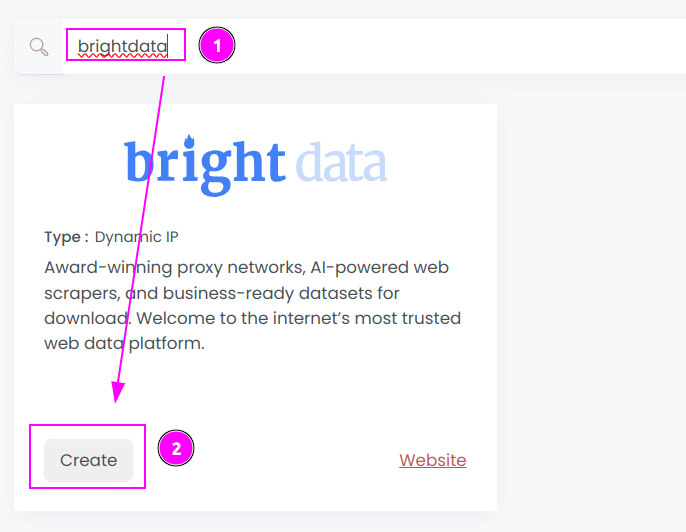
Select Brightdata to create a new credential (use search if necessary).
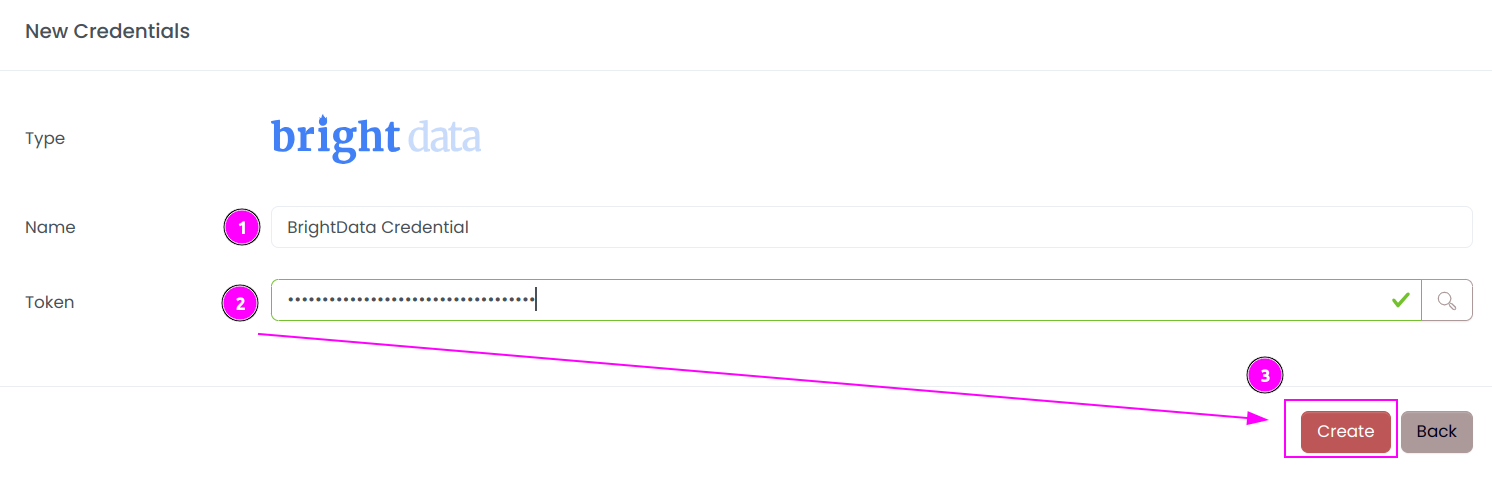
Complete the form with the following information:
- Name: The name of the credential;
- Token: The token.
And click on Create.
Step 2: Create a new connector
Create a new connector and select BrightData as provider:
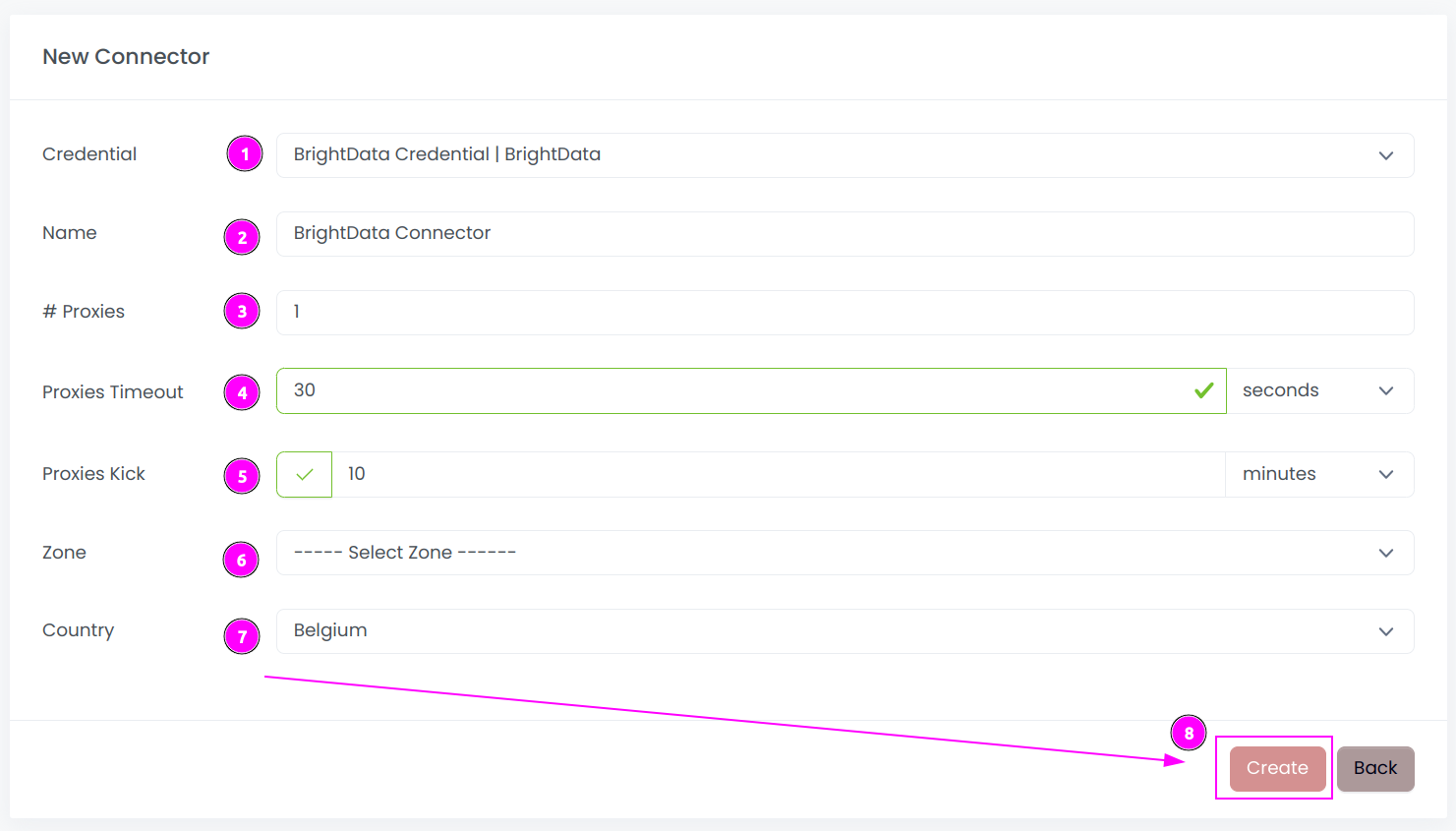
Complete the form with the following information:
- Credential: The previous credential;
- Name: The name of the connector;
- # Proxies: The number of instances to create;
- Proxies Timeout: Maximum duration for connecting to a proxy before considering it as offline;
- Proxies Kick: If enabled, maximum duration for a proxy to be offline before being removed from the pool;
- Zone: The zone to use;
- Country: Select the country to use, or
Allto use all countries.
And click on Create.
WARNING
To prevent rate limit issues, please set the Proxies Timeout to 30 seconds.
Step 3: Start the connector

- Start the project;
- Start the connector.
Step 4: Interact with proxies

Within this connector, you can perform 2 actions on the proxies:
- Trash button: Initiates a proxy rotation. The session is temporarily removed and will be reused later.
- Cross button: Requests a replacement from BrightData to permanently replace the IP, which comes with associated costs.
INFO
If a country is chosen from the configuration menu, the trash button will swap the current instance with an instance of the selected country.
Other: Stop the connector

- Stop the connector;
- Wait for proxies to be removed.